Please Note
Not all Hanson Wade Group events will have an event app. If your event has an app, your event manager will be in touch with details.
Frequently Asked Questions
Downloading and Accessing Your Event App
Not all Hanson Wade Group events will have an event app.
If your event has an app, your event manager will be in touch with details.
The event app is a great way for all attendees at an event to connect, swap virtual business cards, view partner and speaker profiles and create their own schedule.
- Download the Hanson Wade App from the app store.
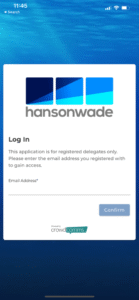
- Enter the email address which you used to register
- Create a password
This error will occur if you use a different email address to the one used to register.
Please also ensure you are using the most up to date version of the app.
If you still receive this error when using the same email address, please contact customersupport@hansonwade.com

Please contact your event manager for the direct link to your app.
Please contact your event manager directly or alternatively, you can email customersupport@hansonwade.com.
If you are at the event, please ask any member of the Hanson Wade team and they will be able to assist you.
Editing and Updating Your Profile
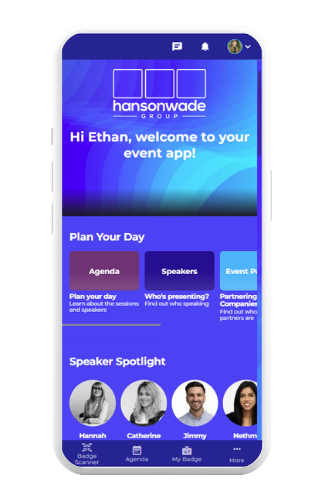
To edit your profile, open the side menu by tapping on your profile picture from the home screen. Then, select "Edit Profile" to get started.
You can add your name, job title, email address, website, phone number, address, location, and social media links.
You can also choose whether these details should be visible on your profile.
To update your privacy settings, tap "Account Settings" and then select "Change Privacy Settings."
For a seamless event experience, we recommend keeping your profile visible. This allows others to chat, message, book meetings, and swap business cards with you. You can update these settings anytime in the "Change Privacy Settings" section.
If you wish to appear offline to others, you can adjust this setting in the "Edit Profile" section. Scroll down to find the option to appear offline and toggle it according to your preference.
Navigating Your Agenda
To chat with our speakers, exchange business cards and view their position in the agenda, click the Speakers tab in the menu.
Tap the star icon on the top right of any session tile to favourite it. This will automatically add it to your personalised schedule. This way you can personalise your own agenda and receive notifications for your upcoming sessions.
Your personalised agenda will sit within the My Schedule tab. Alternatively, click the profile menu and select My Schedule.
To view the agenda, go to the 'Agenda' in the side menu or on your home page. Then, select either the List View or Calendar View icon
For a tracked meeting we would advise a calendar view.
At the top of the agenda you can navigate by day and search for a talk title. Click into an agenda item to see the location, speaker details and synopsis.
The app syncs to the time zone of your device. When you arrive to the location of the event your timings will be correct.
Networking Hub
Click the attendees tab, search for the attendee (either by name, job title or company), select their profile and click chat in the bottom right corner. You can also select to set up a meeting with the bottom right button. If the chat button is not available, they have opted out of chat messaging.
They have likely opted out of being visible in the attendee list, these preferences can be amended at any time at the bottom of your profile.
This networking feature will be visible on Day 1 of the event.
Your Business Card can be updated by clicking Business Cards in the menu and selecting Edit, found under your card. You can then select or deselect any items you wish to be shown on your card.
Make sure you have this information in your profile for it to appear on your Business Card.
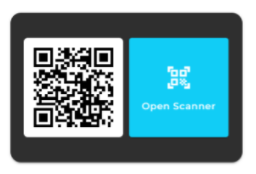
Select the Business Card Swap in the menu and click Scan, this will open your QR code and a scanner button. Open the scanner to scan another attendees business card and vise versa.

All of your exchanges will sit within the Business Card section of the app.
You can sort by most recent exchange, alphabetical order or search. You can view each individual card, message the contact or delete the card if it is no longer relevant
Yes, you can download from both the desktop and mobile versions of the app.
Please speak to your event manager for the web browser link.
When in the Business Card section of the app you can download individual cards or via the Your Contacts section you can download all cards.
Booking Meetings
To book a meeting, select "Meeting Booking" from either the home page or the navigation menu. On the Meeting Booking page, tap the Plus Icon to start setting up your meeting.
Add a subject, select the attendees, choose a date and time, and add a Meeting Request Message if needed. Finally, click "Send Invitation."
You can select who you'd like to meet with by searching for individual names, relevant job titles, or specific companies on the Meeting Booking page.
Yes, you can schedule meetings directly from the Attendee List. Go back to the Home Page, click on "Attendees," browse the list, select the attendee’s profile, and click "Set Up Meeting" to proceed.
Yes, you can set up recurring meetings by selecting the "Repeat" option when creating a meeting. If it's a one-off meeting, tap "Don't Repeat."
When setting up your meeting, you can choose the format that suits you best. If you prefer an in-person meeting, select a location from the pick list. If you'd rather meet virtually, choose the virtual meeting option.
Once you send a meeting invitation, the person you invited will receive an in-app notification and an email with a calendar attachment. When they accept the invitation, you will receive both an email and an in-app notification confirming the meeting.
Accessing and Viewing Posters
To access academic posters, select "Posters" from either the home page or the navigation menu. This will take you to the Poster Module where you can view all available posters.
Yes, you can search for posters by title or author. You can also filter posters by topic and change your view from small to large icons for easier browsing.
To view details of an individual poster, select the poster from the list. You will be able to zoom in for a closer look and even download the poster to your device.
Yes, each poster will display the number of likes and views it has received. You will have the option to chat and network with the author and other attendees about the poster. You can also make private notes in the notes tab.
You can like posters, which will add them to your favourites list. This makes it easy to filter and find your favourite posters when you return to the page.
Get in Touch
Have a question or can't find what you're looking for? Reach out today and one of the team will get back to you.

About Hanson Wade Group
Enabling growth is at the heart of what we do. We specialize in identifying the niche information needs for rapidly innovating fields.

Your Voice Heard
Your perspective matters. Share your thoughts, feedback, or ideas to help improve our products and services.